Once you have added vendors and contacts, you can manage your contacts by editing their details, deleting the contact, or re-assigning the contact to a different vendor.
To learn how to add a contact, visit our Import Contacts & Vendors help guide.
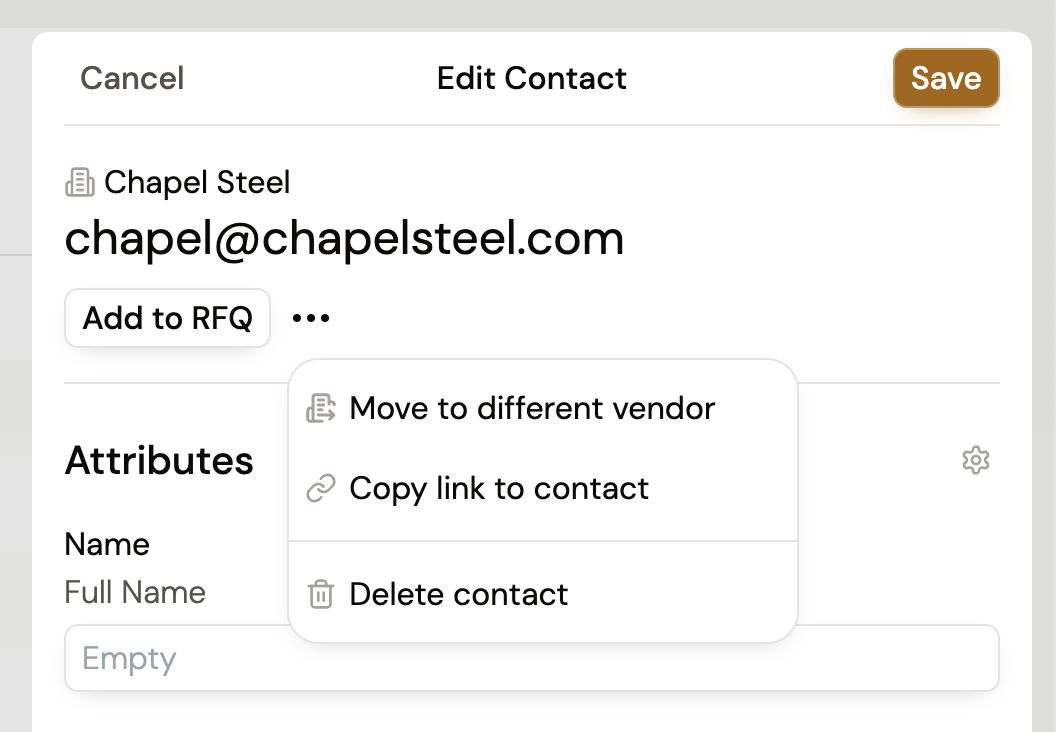
To manage a contact, first find and select them from the Contacts tab or from a vendor's profile. Once you select the contact, you can take the following actions:
If a contact has moved to a new company or was assigned to the wrong vendor, you can easily reassign them.
When you send an RFQ to an email not yet in your network, a contact is automatically created with None as the vendor. To assign a vendor, simply select the vendor dropdown on a contact and select which vendor you want to associate the contact with.
To learn more about our vendor management capabilities, visit our other guides.
Still got questions? Contact Us or Book a Demo to learn more about how Purchaser can fit into your workflow.
