Our quote comparison tool analyzes your uploaded documents and consolidates them into a summary of the key differences between vendors and a side-by-side comparison of every line item highlighting the details you need to make a decision all in one place.
Beyond manual uploads, our platform automatically captures and processes every quote iteration tied to your RFQs as they arrive. This ensures your analysis is updated in real time, providing you with a ready-to-review comparison soon after a vendor responds.
Our platform extracts data from individual quotes that you upload without you having to manually compare them. Even if you already have an established RFQ system, Purchaser acts as a powerful analytical layer, enhancing your existing workflow with deeper insights and side-by-side comparisons.
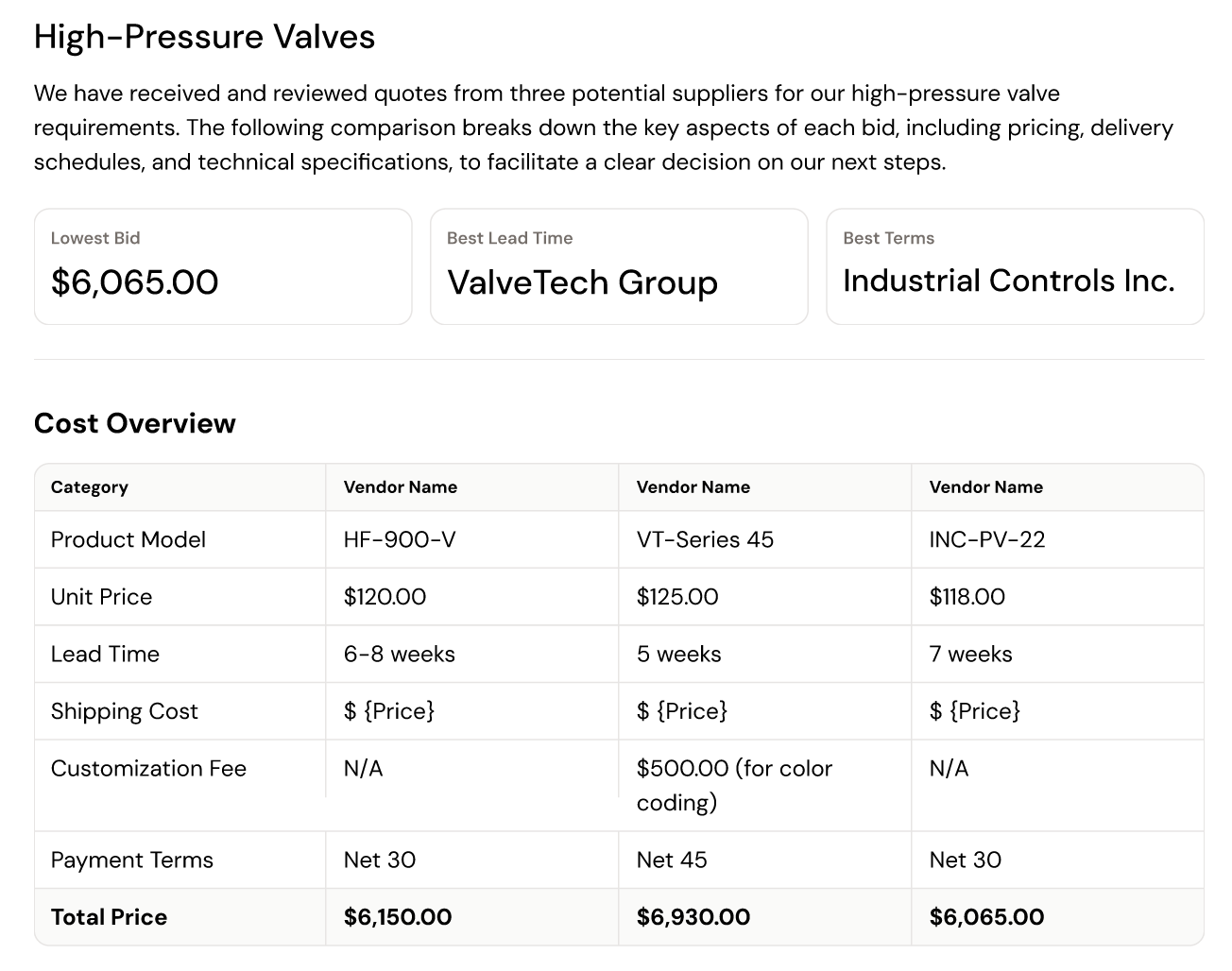 Insights Tab
It can take up to 15 minutes for a quote to be processed. Once they are processed, we'll display insights from your quote and more for you to review.
In the Insights tab, you'll see the summary report that we generate from your quotes. This can include the following sections depending on the content included in your uploaded quotes...
Source Documents tab
This is your central hub for all uploaded documents. You can upload additional quotes for this project or click on a document to view it and its properties.
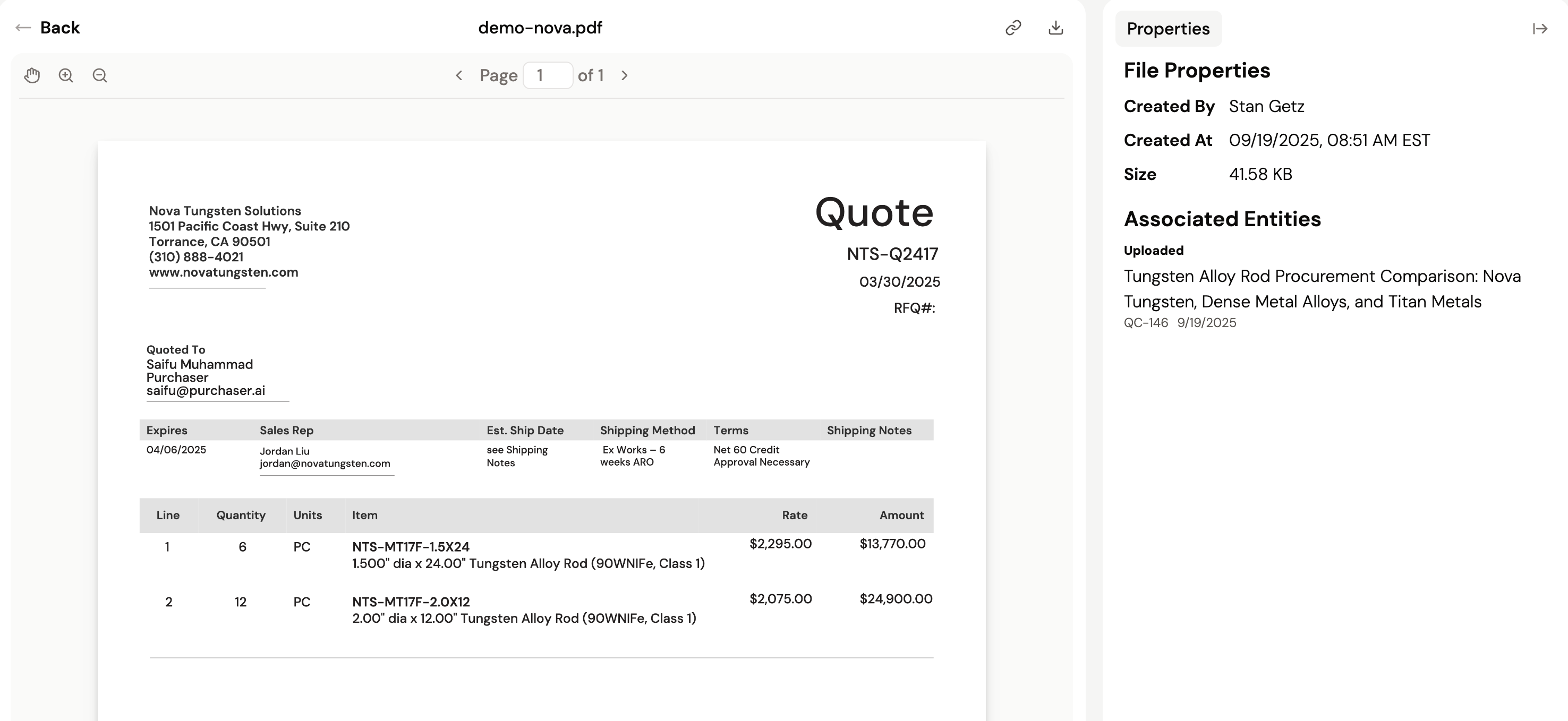 Line Items tab
The Line Items tab is your complete breakdown of every item across all your quotes.
We automatically extract all line item details so you can easily review them in one place. You can also:
As soon as you send an RFQ through our platform, our system begins monitoring for responses. We automatically capture new quotes and no-bids, analyzing the data as it arrives. You get a comprehensive comparison without ever having to manually upload a file or track an email.
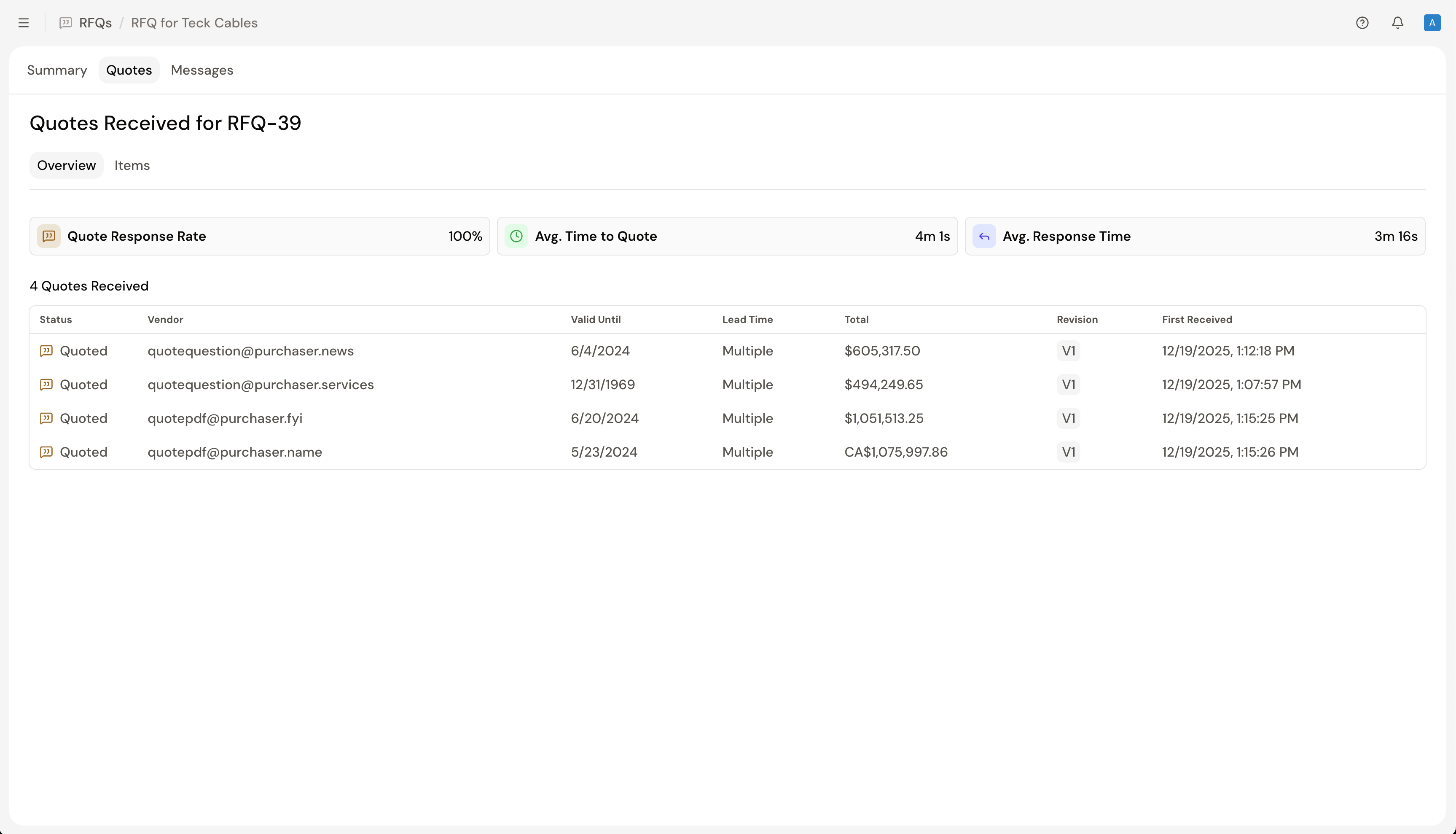 Quotes Overview
The Quotes Overview highlights information across all your vendor quotes helping you compare totals, lead times, and more. We also provide you with details such as your quote response rate, average time to quote, and average response time to make informed decisions about expanding your vendor list or optimize your RFQ requirements to drive better results.
Items Overview
This section centralizes the quoted pricing for every requirement in your RFQ. You can view this data in 2 views: a Side-by-Side View, which displays each request as a row for direct vendor comparison, and a List View, which allows you to expand individual line items for a deeper dive into specific quote details.
Individual Quote Analysis
Selecting each individual quote will give you more details analysis for each quote including a summary of the quote including the following:
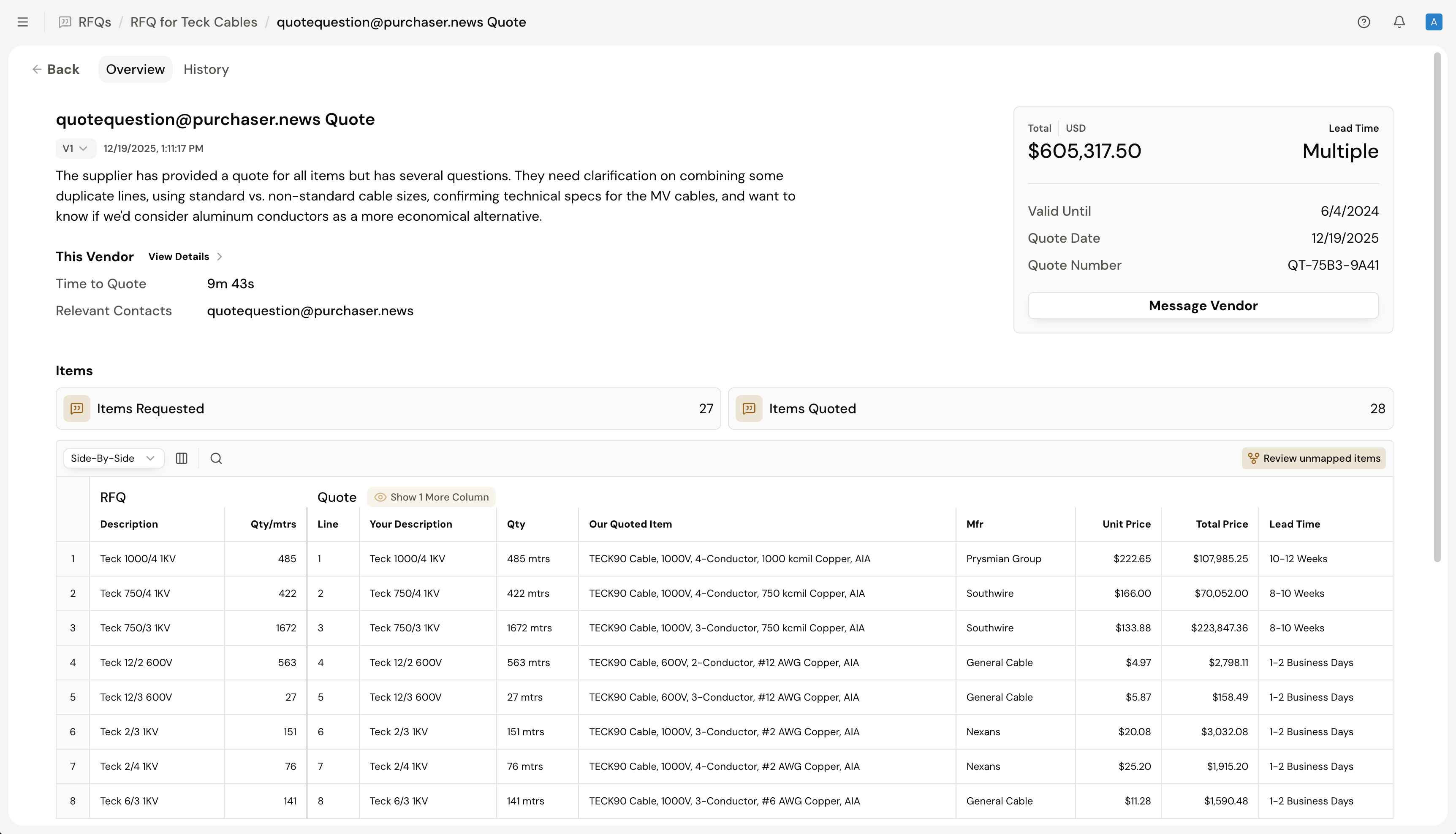
To follow-up with the vendor with any additional questions, select Message Vendor. To view an audit of the quotes especially if you're negotiating or have changes that are reflected in the quote, select the History tab.
From the History tab you'll be able to view all of the previous iterations of the quote and the messages relevant for the quote for your audit trail.
To learn more about how our analysis works, review our How Quote Compare Works guide.
Still got questions? Contact Us or Book a Demo to learn more about how Purchaser can fit into your workflow.
