Purchaser Logo
Sign In Sign Up

RFQ

Schedule Reminders

Purchaser enables you to schedule reminders to all your vendors on the RFQ to automate your follow-ups. This ensures you get responses without manually chasing quotes or replies.

Scheduled reminders are only sent to vendors who haven't yet responded, so you never have to worry about bothering those already in contact or who have already submitted their quotes.

Add a Reminder

You can schedule reminders for a single date or set them to recur. Recurring reminders will stop automatically either on a date you select or once the contact responds to your RFQ.

To Add a Reminder:
  1. Select the RFQ you want to schedule a reminder for.
  2. From the Summary tab, select the Clock Icon on the top right of your RFQ page.
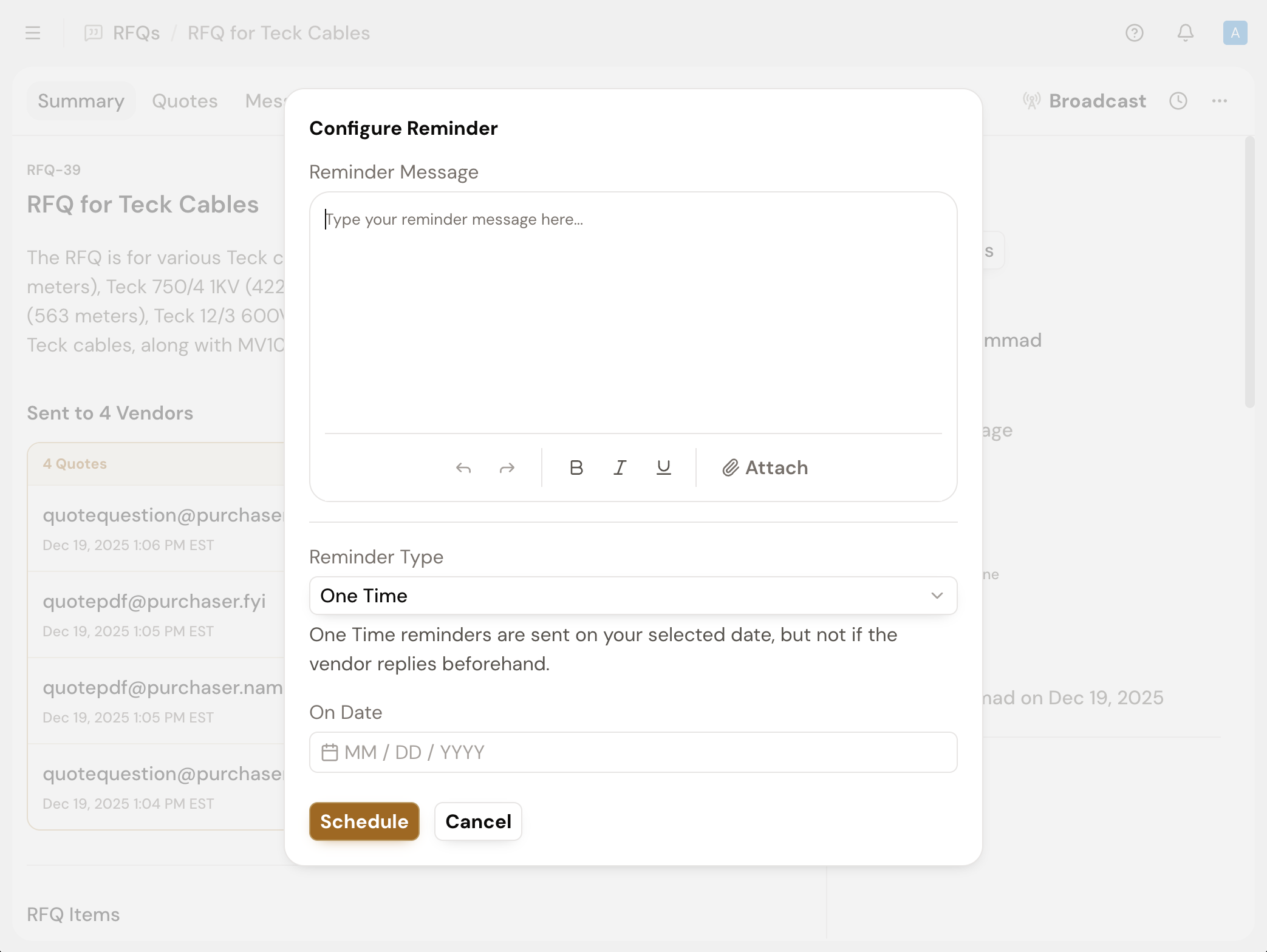
  3. On the modal, compose the message that you want to include for your reminder.
  4. Once you have your message composed, select a Reminder Type. There are two types of reminders that you can select:
    • One Time Reminder: These reminders are sent on your selected date, but not if the vendor replies beforehand.
    • Recurring Reminder: These reminders begin on your start date, follow your timing, and stop at your chosen end date or when the vendor replies.
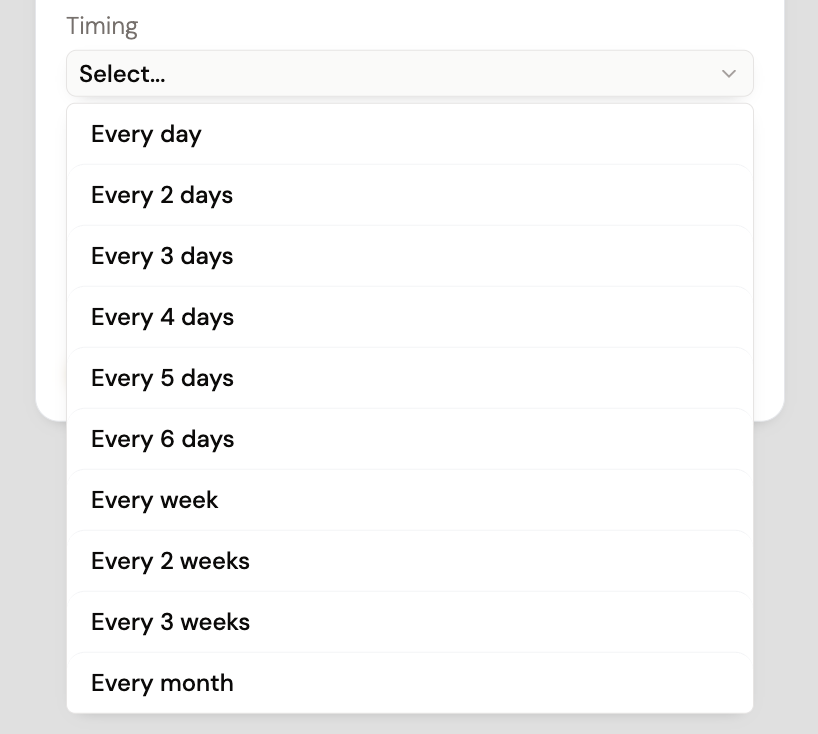
  5. If you select a Recurring Reminder, you will be prompted to choose the Timing, which controls how often the reminder is sent.
  6. Once you have selected a timing, set the start date for when the reminders should begin (e.g., one week from now) and the end date for when they should stop. If the vendor responds before the end date, the recurring reminders will automatically stop.
  7. Once you have your reminder configured, select Schedule to set your reminders.

Each RFQ supports one automated reminder schedule. When configuring your settings, ensure you include all intended follow-ups to maintain consistent vendor engagement throughout the RFQ process.


Edit an Upcoming Reminder

Once scheduled, your reminder message will be automatically sent to each contact on the RFQ. Since each reminder is configured per vendor, a vendor who responds will stop receiving reminders immediately, while others will continue until they respond or the reminder's end date is reached.

To view the upcoming reminders for an RFQ, select the Clock Icon on the right of your RFQ Summary page.
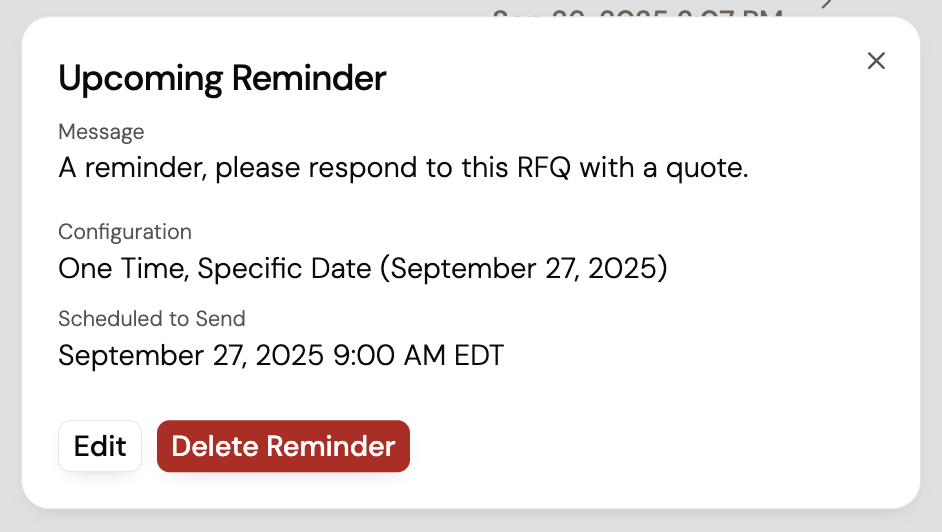
To edit the reminder:

  1. View your upcoming reminder by selecting the Clock Icon on the top right of your RFQ page.
  2. Select Edit on the modal to edit the reminder. You can edit a one-time reminder to a recurring reminder or edit the dates set for your reminder.
  3. Select Delete Reminder to stop any upcoming reminders from being sent.

Updating an active reminder schedule will not retroactively affect messages already sent, but all subsequent follow-ups will be adjusted to reflect your changes.


Still got questions? Contact Us or Book a Demo to learn more about how Purchaser can fit into your workflow.