Purchaser simplifies RFQ management, whether you send one per month or dozens daily. Instead of sifting through a crowded email inbox, Purchaser automatically organizes all your RFQ responses. This allows you to easily view and compare quotes in one centralized place, significantly boosting your efficiency. Here's what separates our RFQ platform from others:
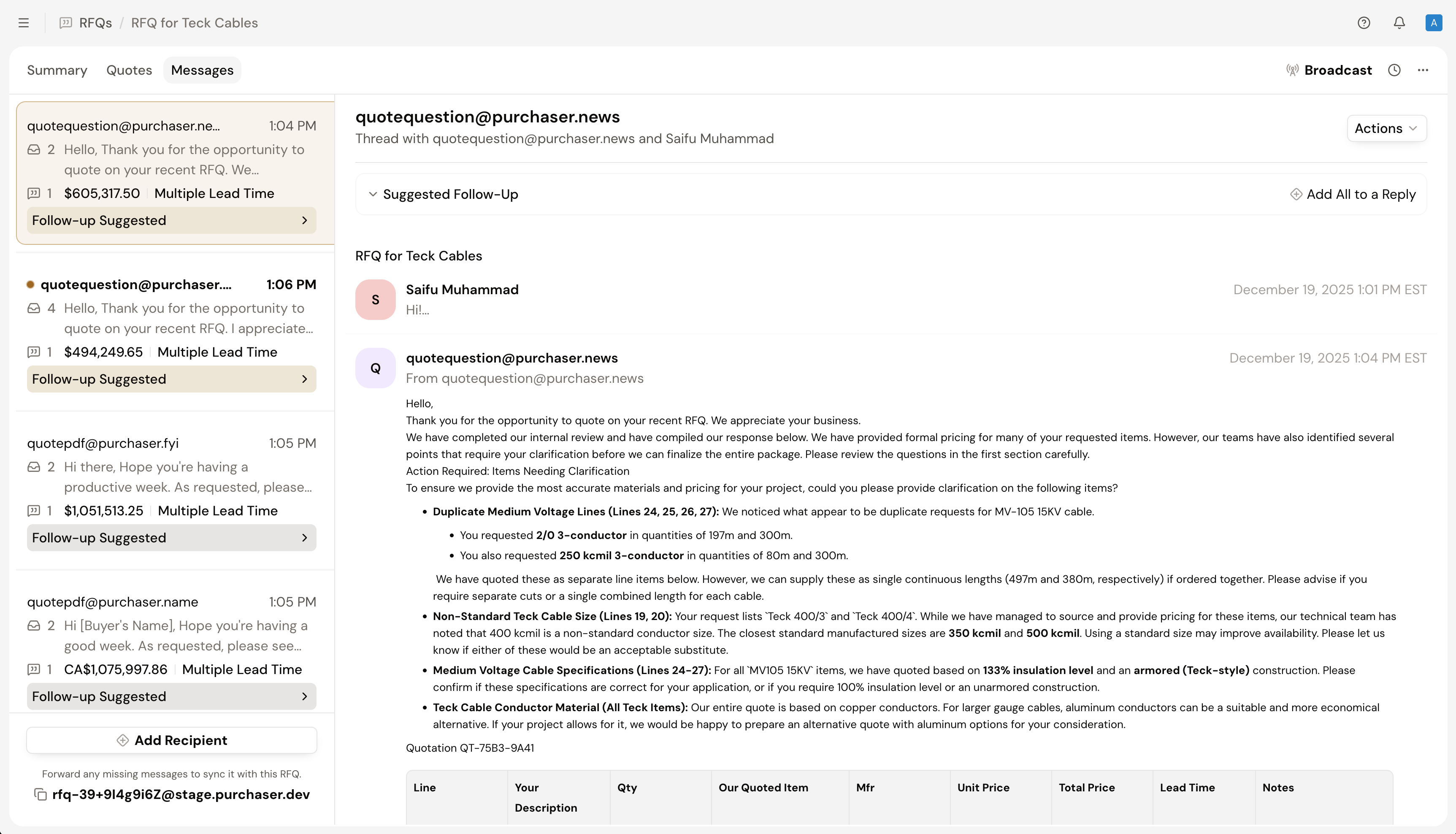 Once you send an RFQ, you can send follow-up messages or respond to a vendor through your own inbox or you can reply directly through the Purchaser app. No matter how you respond, we’ll organize your message threads, making it easy for you to manage all your RFQ communication in one place.
You can easily respond to RFQs directly within our platform, ensuring all communication is centralized and easy to track.
To reach out to all your vendors at once, Purchaser enables you to Broadcast a Message, which enables you to draft and send a message to all your vendors at once. This message will be sent to all contacts involved with each vendor mailbox. To learn more about, visit our Broadcast a Message guide.
If a vendor reply is missing the RFQ ID or context, our system can't connect it to a project. These messages are moved to the Uncategorized Section in your RFQ Inbox. Open this section to view any missing messages and easily assign them to the correct RFQ. To learn more visit our Missing Vendor Replies guide.
To respond to an RFQ in your own email inbox, you’ll want to Integrate Your Email with our platform. Integrating your email with Purchaser ensures that any RFQ you send out will come directly form your email and you have the option to respond in your own inbox or in our platform.
Any response you send or receive through your own email client will be connected to the Purchaser platform so you never miss an email. To learn how to connect your email, visit our Integrate With Your Email guide.
If you’ve already sent an RFQ, you can continue to add additional vendors to your RFQ by selecting the Add Vendor option from your RFQ Summary tab or by selecting the Add Recipient option from your messages tab.
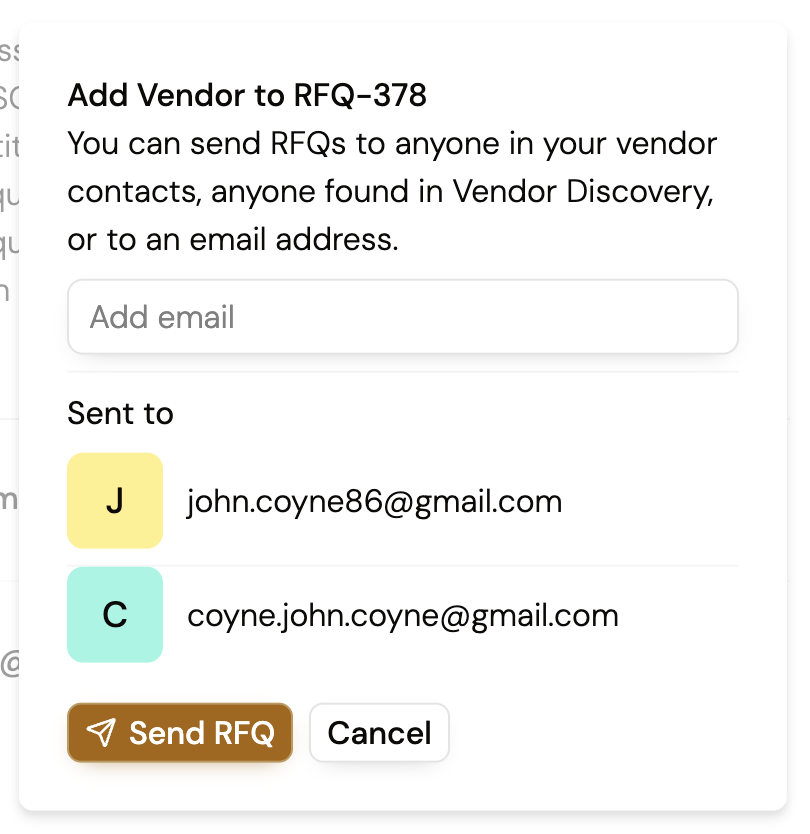 Adding a vendor will re-send them the initial RFQ and create a new mailbox for that vendor on your RFQ to them respond, schedule reminders for, and more.
Still got questions? Contact Us or Book a Demo to learn more about how Purchaser can fit into your workflow.
